
SUMAX Plugin License Guide
-
投稿者投稿
-
2026-10-14 02:06 #40532sumaxキーマスター
適用於 SUMAX 官網版;已購買者以購買帳號或 Email 和密碼登入啟用。EW 版依其授權流程操作。
For SUMAX website versions. Activate purchases with the purchase account or email and password. EW versions use their own licensing process.
SUMAX 官網版が対象です。購入済みの場合は購入アカウントまたはメールとパスワードで有効化します。EW 版は専用の手順に従います。
Para versiones de la web SUMAX. Active la compra con la cuenta o correo de compra y la contraseña. Las versiones EW tienen su propio proceso.圖片為英文截圖;標有 Illustration 的圖片依現有程式碼生成,帳號、設備及版本為示例。
Images are in English. Images marked Illustration are generated from current code; account, device and version values are examples.
画像は英語です。Illustration と表示された画像は現行コードから作成した例で、アカウント・デバイス・バージョンはサンプルです。
Las imágenes están en inglés. Las marcadas Illustration se generan a partir del código actual; la cuenta, el dispositivo y las versiones son ejemplos.-
允許驗證 / Allow verification
首次使用時,按 OK 允許連線至 SUMAX 授權伺服器。
On first use, click OK to allow connection to the SUMAX license server.
初回使用時に OK を押し、SUMAX ライセンスサーバーへの接続を許可します。
En el primer uso, pulse OK para permitir la conexión al servidor de licencias SUMAX.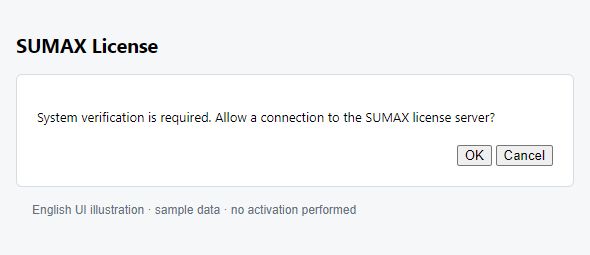
-
選擇試用或啟用 / Choose trial or activation
未購買:按 Start Trial。已購買:按 Enter License。
Not purchased: choose Start Trial. Purchased: choose Enter License.
未購入なら Start Trial、購入済みなら Enter License を選びます。
Sin compra: elija Start Trial. Con compra: elija Enter License.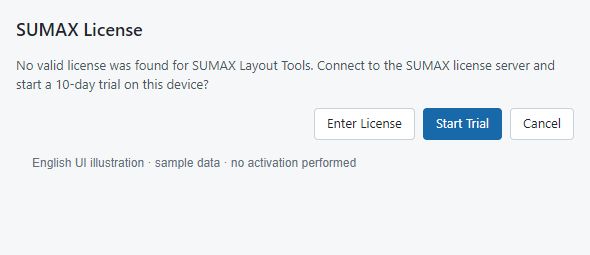
-
登入並啟用 / Sign in and activate
輸入 SUMAX 官網購買帳號或 Email、密碼及設備名稱,按 Sign In and Activate。
Enter your SUMAX purchase account or email, password and device name. Click Sign In and Activate.
SUMAX の購入アカウントまたはメール、パスワード、デバイス名を入力し、Sign In and Activate を押します。
Introduzca su cuenta o correo de compra SUMAX, contraseña y nombre del dispositivo. Pulse Sign In and Activate.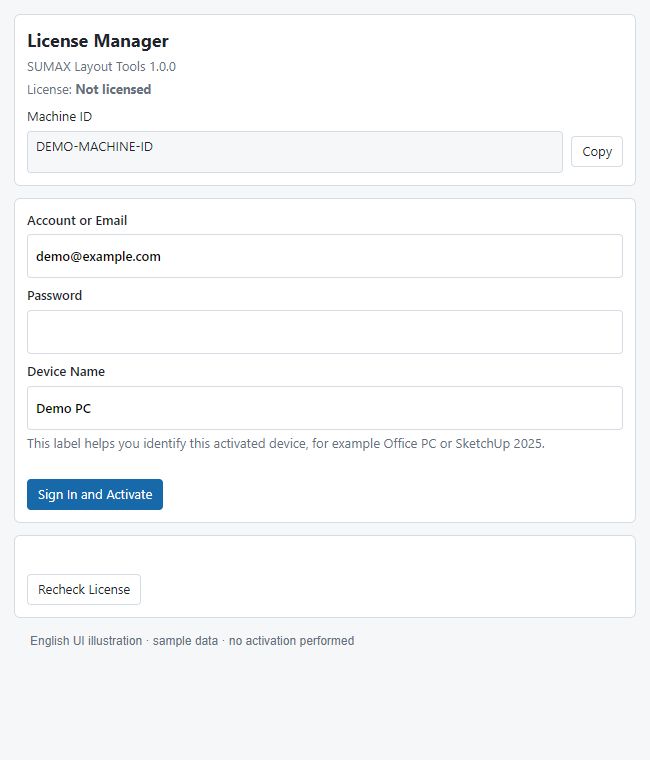
-
確認狀態 / Confirm the status
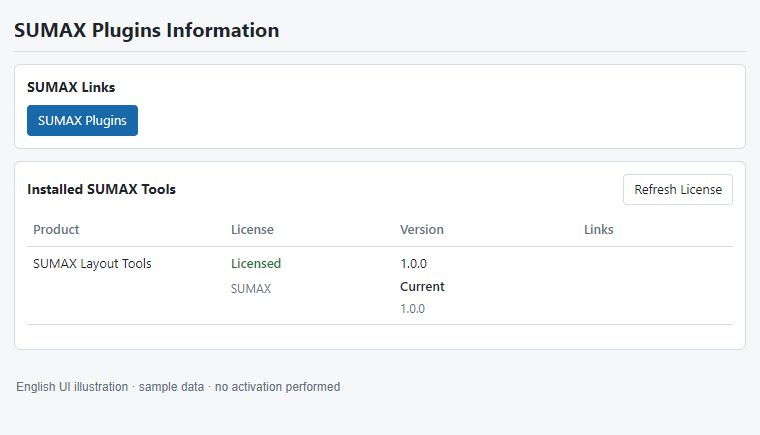
看到啟用成功後,開啟 SUMAX Information,確認 Licensed 或 Trial;必要時按 Refresh License。
After activation succeeds, open SUMAX Information and confirm Licensed or Trial. Use Refresh License if needed.
有効化成功後、SUMAX Information で Licensed または Trial を確認します。必要なら Refresh License を押します。
Tras activar, abra SUMAX Information y confirme Licensed o Trial. Use Refresh License si es necesario.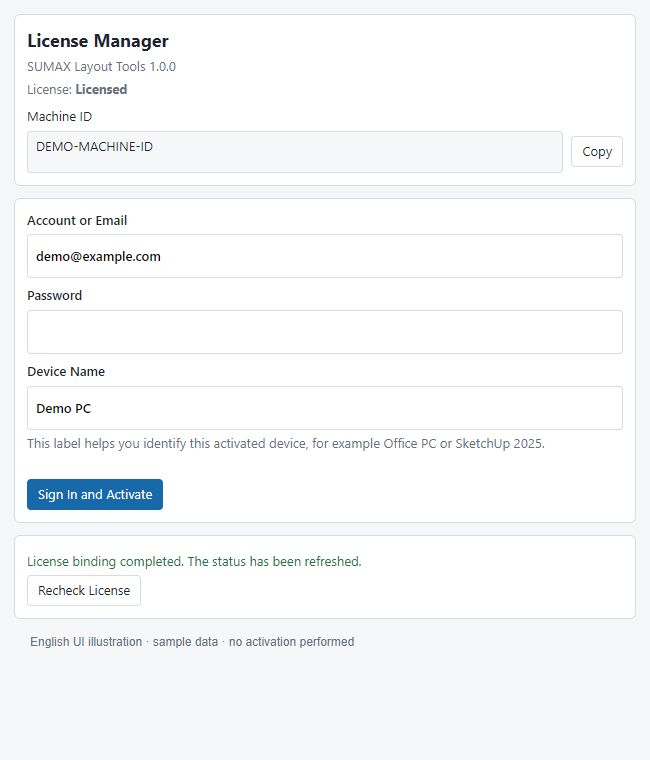
試用期限與設備數以畫面及購買方案為準(圖例為 10 天)。設備已滿時確認舊設備後再按 Replace Device;連線失敗請檢查網路並重新檢查授權。請勿在論壇張貼密碼、授權資訊或完整機器碼。
Trial duration and device limits follow the displayed status and your plan (the example shows 10 days). At the device limit, confirm the old device before Replace Device. For connection errors, check the network and recheck the license. Do not post passwords, license details or full Machine IDs.
試用期間と台数は画面・購入プランに従います(例は 10 日)。上限時は旧デバイスを確認してから Replace Device を選びます。接続失敗時はネットワークとライセンスを再確認してください。パスワード・ライセンス情報・完全な機器 ID は投稿しないでください。
La prueba y el límite de dispositivos dependen del estado y del plan (el ejemplo muestra 10 días). Confirme el dispositivo anterior antes de Replace Device. Si falla la conexión, revise la red y la licencia. No publique contraseñas, datos de licencia ni IDs completos del equipo. -
-
投稿者投稿
- このトピックに返信するにはログインが必要です。
Topic Info
- Status: Solved / Open
- Plugin: Qmax / Layout / Scene
- SketchUp: 2025 / 2026
- Platform: Windows / macOS
Related Knowledge
- How to report a bug
- License activation guide
- Layout export checklist
Need Support?
請登入 SUMAX 客戶帳號後回覆,並附上錯誤截圖與版本資訊。