
SUMAX Plugin Auto Update Guide
- Este debate tiene 0 respuestas, 1 mensaje y ha sido actualizado por última vez el hace 1 semana, 2 días por sumax.
-
AutorEntradas
-
2026-10-14 a las 02:06 #40531sumaxSuperadministrador
適用於從 SUMAX 官網安裝、支援自動更新的 Direct 版;EW 版請從 Extension Warehouse 更新。
For Direct versions installed from SUMAX that support automatic updates. Update EW versions through Extension Warehouse.
SUMAX 官網から導入した自動更新対応の Direct 版が対象です。EW 版は Extension Warehouse で更新します。
Para versiones Direct instaladas desde SUMAX con actualización automática. Actualice las versiones EW desde Extension Warehouse.圖片為英文截圖;標有 Illustration 的圖片依現有程式碼生成,帳號、設備及版本為示例。
Images are in English. Images marked Illustration are generated from current code; account, device and version values are examples.
画像は英語です。Illustration と表示された画像は現行コードから作成した例で、アカウント・デバイス・バージョンはサンプルです。
Las imágenes están en inglés. Las marcadas Illustration se generan a partir del código actual; la cuenta, el dispositivo y las versiones son ejemplos.-
檢查更新 / Check updates
開啟 SUMAX Information,查看版本;有新版時按 Auto Update。
Open SUMAX Information and check the version. Click Auto Update when an update is available.
SUMAX Information でバージョンを確認し、更新があれば Auto Update を押します。
Abra SUMAX Information y revise la versión. Pulse Auto Update si hay una actualización.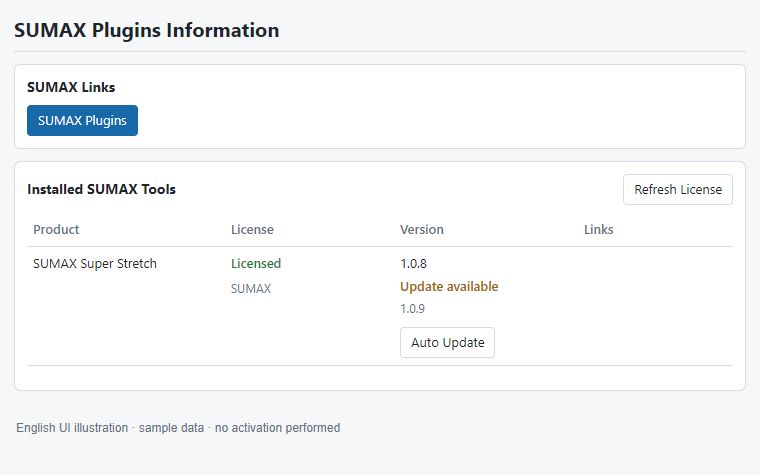
-
確認提示 / Confirm the prompt
若出現更新提示,按 Yes;按 No 可稍後更新。
If an update prompt appears, choose Yes. Choose No to update later.
更新確認が表示されたら Yes を選びます。後で更新する場合は No を選びます。
Si aparece una confirmación, elija Yes. Elija No para actualizar más tarde.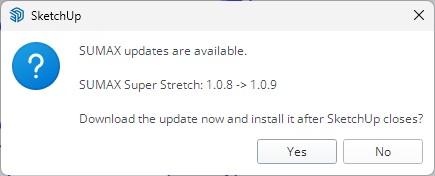
-
下載完成後關閉 / Close after the download
等待更新準備完成,儲存模型,並完全結束 SketchUp。
Wait until the update is ready, save your model and quit SketchUp completely.
更新準備の完了を待ち、モデルを保存して SketchUp を完全に終了します。
Espere a que la actualización esté lista, guarde el modelo y cierre SketchUp por completo.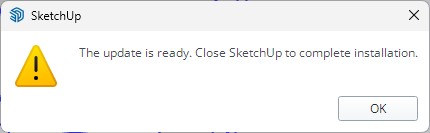
-
重新開啟 / Reopen SketchUp
Windows:等待安裝後再開啟。macOS:重新開啟時會在工具載入前安裝。
Windows: wait for installation, then reopen. macOS: reopening installs the update before the tool loads.
Windows:インストール後に起動します。macOS:再起動時、ツールの読み込み前に更新されます。
Windows: espere la instalación y vuelva a abrir. macOS: al reiniciar se instala antes de cargar la herramienta.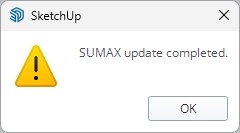
-
確認新版本 / Verify the new version
確認完成訊息,再於資訊視窗檢查版本號;不要只看「最新」文字。
Confirm the completion message, then check the version number in the information window.
完了メッセージを確認し、情報画面でバージョン番号も確認します。
Confirme el mensaje de finalización y el número de versión en la ventana de información.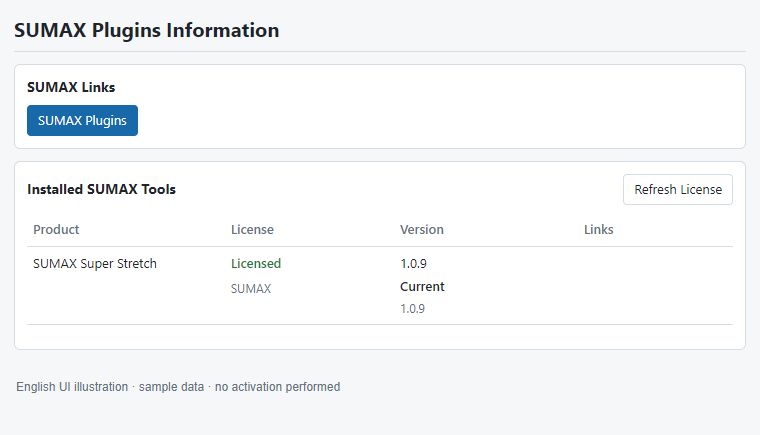
舊版 macOS 可能依提示再次重啟;無自動更新功能者需先手動安裝新版 RBZ。更新失敗或版本未變時,檢查網路、完整重啟,再附錯誤與版本到本區提問。
Older macOS versions may request another restart. Versions without automatic updates need a newer RBZ installed manually. If updating fails or the version stays unchanged, check the network, restart fully and post the error and version here.
古い macOS 版では追加の再起動が必要な場合があります。自動更新非対応版は新しい RBZ を手動導入してください。失敗・バージョン未変更時は接続と再起動を確認し、エラーとバージョンを投稿してください。
Las versiones antiguas de macOS pueden pedir otro reinicio. Si no hay actualización automática, instale un RBZ nuevo manualmente. Si falla o la versión no cambia, revise la red, reinicie por completo y publique aquí el error y la versión. -
-
AutorEntradas
- Debes estar registrado para responder a este debate.
Topic Info
- Status: Solved / Open
- Plugin: Qmax / Layout / Scene
- SketchUp: 2025 / 2026
- Platform: Windows / macOS
Related Knowledge
- How to report a bug
- License activation guide
- Layout export checklist
Need Support?
請登入 SUMAX 客戶帳號後回覆,並附上錯誤截圖與版本資訊。